DRS (Distributed Resource Scheduler)
DRS is available exclusively with an Enterprise license. The required feature flag is drs.
The Distributed Resource Scheduler (DRS) provides automatic VM load balancing across Proxmox cluster nodes. Inspired by VMware DRS, it continuously monitors resource utilization and generates migration recommendations to keep your clusters balanced and healthy.
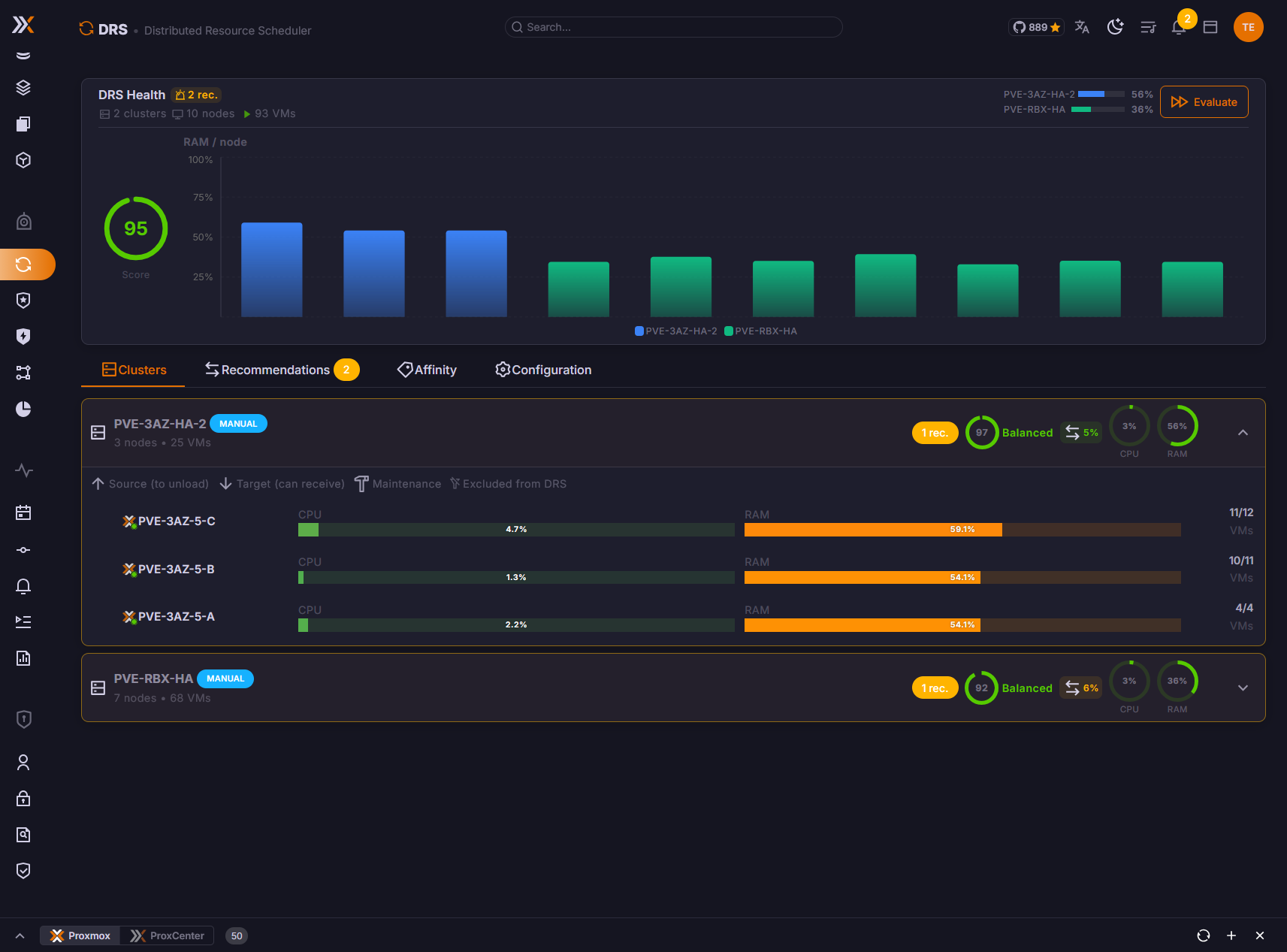
Overview
DRS analyzes CPU, memory, and storage usage across all nodes in a cluster, identifies imbalances, and recommends VM migrations to distribute workloads evenly. It supports three operating modes:
| Mode | Behavior |
|---|---|
| Manual | DRS generates recommendations that an administrator must review and execute manually |
| Partial | Recommendations above a configurable priority threshold are executed automatically; the rest require manual approval |
| Automatic | All recommendations are executed automatically without manual intervention |
Interface Tabs
The DRS page is organized into five tabs, in a bar at the top of the page: Load Overview, Recommendations, History, Affinity Rules, and Configuration. The DRS health card sits inside Load Overview rather than above the bar.
Load Overview
The Load Overview tab provides a real-time view of every connected Proxmox cluster that has more than one node. Each cluster is displayed as an expandable card showing:
- Cluster name and Proxmox VE version
- Node count and running VM count
- Average CPU and memory utilization displayed as circular gauges
- Health score -- a computed score reflecting overall cluster balance (Balanced, To Optimize, or Unbalanced)
- Memory spread -- the percentage gap between the most-loaded and least-loaded node
- A constraint chip when the cluster cannot balance freely, reading SDN, Storage or SDN + storage, see Placement Constraints
Expanding a cluster card reveals the per-node breakdown. Each node displays:
- CPU and memory usage as horizontal progress bars
- Running VM count vs. total VM count
- A color-coded role indicator:
| Role | Meaning |
|---|---|
| Source (red) | Node is above average utilization and should offload VMs |
| Target (green) | Node is below average utilization and can receive VMs |
| Neutral | Node is within the acceptable range of the cluster average |
| Maintenance (amber) | Node is in maintenance mode and is excluded from DRS placement, as a source and as a target |
Recommendations
The Recommendations tab lists all pending migration recommendations. Each recommendation shows:
- The VM or container name and its ID
- The migration path: source node to target node
- A priority level: Low, Medium, High, or Critical
- An estimated improvement score indicating how much the migration will improve cluster balance
Clicking a recommendation opens a detail drawer where you can:
- Review the full migration details (VM info, reason, priority, estimated improvement, creation date)
- View storage validation results -- DRS checks whether the VM has local or shared disks and whether the target node has enough storage space
- Approve, Reject, or Execute the migration
When a migration is executed, a real-time progress bar tracks its status including percentage complete and current operation message. DRS polls the Proxmox task every 2 seconds until the migration completes or fails. The same percentage is shown on the DRS row of the Task Center and of the tasks bar.
If a VM has been moved since the recommendation was created, DRS automatically marks it as stale and prevents execution. The recommendations list is revalidated each time you open a detail drawer.
Placement Constraints
DRS only proposes a move to a node that can actually run the guest. A guest's real choice of nodes is the intersection of what its networks and its storages reach: each netN bridge resolved to its SDN VNet and that VNet's zone, and each disk resolved to its storage. Guests that share the same set of eligible nodes form a balancing domain, and DRS balances inside each domain, against that domain's own average and its own spread, instead of against a cluster-wide average that no guest can actually reach.
On a cluster with no restriction there is exactly one domain covering every eligible node, and its average and spread are the cluster's own, so nothing changes.
When a cluster is restricted, the Recommendations tab carries a Placement constraints card: "These clusters cannot balance freely: a bridge, an SDN VNet or a storage a guest needs does not reach every node." It holds two lists:
- Balancing domains, each with the number of guests it holds and its spread. A domain reduced to a single node reads nowhere to move rather than a spread of zero, which would look like perfect balance.
- Guests that cannot be moved, each with the node it sits on and what blocks it, typically "no other node carries this guest's network or storage".
The card renders nothing at all on an unrestricted cluster, which is the common case. The cluster header chip names the cause, SDN, Storage or SDN + storage, read from what the engine reports rather than guessed, and its tooltip explains the consequence: the memory spread and the health score are still computed over every node, so on such a cluster they cannot come down to zero.
When nothing is left to balance but guests are pinned, the page says so, "Nothing to balance right now. Some guests cannot be moved at all, see the placement constraints above.", instead of declaring every cluster balanced.
Proxmox's own migration precheck reports every node as allowed for a guest on a restricted-zone VNet, so DRS used to keep recommending cross-zone moves that fail in their second phase with bridge '...' does not exist, after the target guest has already been started. The precheck does report unavailable storages correctly, and that half is still cross-checked before a migration fires.
The rule blocks only on positive evidence, so missing or unreadable data never freezes DRS: a zone with no node list, an unrestricted storage, a VNet whose zone did not load, a bridge absent from the source node too, and a node whose interfaces could not be read are all left alone.
The filter is applied on every path that picks a target: reactive and proactive balancing, homogenization, affinity rule enforcement, maintenance evacuation, the rolling update placer, and a last check immediately before a migration is fired. A migration declined for one of those reasons is reported as a decision with its reason, not as a server error.
The pinned guests and the balancing domains are the first DRS figures that name guests, so they go through the same infrastructure scope as everything else, and a domain is shown only when every node it names is visible to you. A partially visible domain would leak the rest.
Storage Validation
Before executing a migration, DRS performs a pre-flight storage check:
- Shared storage: If all VM disks reside on shared storage (Ceph, NFS, etc.), the migration is safe and fast -- no data copy is required.
- Local storage: If the VM has local disks, DRS displays:
- A list of local disks with their sizes
- The total data to transfer and an estimated transfer duration
- A breakdown of the target node's storage: current usage, projected usage after migration, and a warning level (OK, Warning, Critical, or Full)
Migrations involving local storage take significantly longer and temporarily consume additional storage space on the target node. Always verify that sufficient space is available before proceeding.
History
The History tab is the record of what DRS actually did, and why. It opens on five figures over the filtered set, Migrations, Completed, Failed, In progress and Average duration, then lists the migrations newest first, grouped by day.
Each row carries the guest and the node it moved between, the reason DRS decided it, how long it took and how it ended. A migration carried out to empty a node for maintenance is marked with an Evacuation chip.
Three filters narrow the list: the cluster, the status (Completed, Failed, In progress), and a search on a guest's name or VMID.
The reasons DRS records are its own vocabulary, not free text:
| Reason | When DRS uses it |
|---|---|
| High CPU load on source node | The source node passed the CPU high threshold |
| High memory usage on source node | The source node passed the memory high threshold |
| Homogenization: reduce load from X% to Y% | The move brings the source back towards the average of its balancing domain |
| Load balancing optimization | The generic balancing decision, reactive or proactive |
| Node evacuation for maintenance | The node is being emptied, and the row carries the Evacuation chip |
| Affinity rule 'name' | An affinity, anti-affinity or node affinity rule asked for the move |
A migration recorded before v1.4.10 shows Reason not recorded: the reason used to live on the recommendation, which is pruned long before the migration row it produced, so it could not be read back afterwards. It is copied onto the migration row when the migration starts now.
Migrations interrupted by an orchestrator restart
A migration that the orchestrator was following when its process stopped (restart, upgrade, out-of-memory kill, or the orchestrator evacuating its own node) is not left at Running. At boot, 20 seconds after start, and then every five minutes, the orchestrator reconciles every migration still marked running against the Proxmox task it recorded, or against where the guest now sits when the task is gone: a finished move is marked completed, a failed one failed, and a move still in flight is re-adopted and followed with the time budget it has left. A row with no evidence either way for an hour is written off, and rows belonging to a connection that has been removed are closed. The sweep runs whether or not DRS is enabled, so rows stranded by an earlier version clear on the first start after the upgrade, and it sends no burst of late "migration completed" notifications.
In a high availability deployment only the leader orchestrator runs this sweep, see DRS in a high availability deployment.
Affinity Rules
Affinity rules let you control VM placement within a cluster. When multiple clusters are connected, a cluster selector at the top lets you choose which cluster's rules to manage. Three rule types are supported:
| Rule Type | Description |
|---|---|
| Affinity | Keep selected VMs together on the same node |
| Anti-affinity | Keep selected VMs on different nodes to avoid single points of failure |
| Node affinity | Pin specific VMs to designated nodes |
Each rule can be configured as:
- Required (hard constraint) -- DRS will never generate a recommendation that violates this rule
- Preferred (soft constraint) -- DRS will respect this rule when possible but may override it under heavy load
Rules can also be populated from Proxmox tags or resource pools, making it easy to define placement policies for groups of VMs without listing individual VMIDs.
Use anti-affinity rules for redundant services (e.g., two database replicas) to ensure they never land on the same hypervisor.
Configuration
The Configuration tab exposes all DRS tuning parameters:
General Settings
- Enable/Disable DRS -- master toggle for the scheduler
- Operating mode -- Manual, Partial, or Automatic
- Balancing method -- Optimize for Memory, CPU, or Disk
- Balancing mode -- Based on actual usage (
used), allocated resources (assigned), or pressure stall information (psi, requires PVE 9+) - Guest types -- Balance VMs, containers, or both
Thresholds
- CPU high/low thresholds
- Memory high/low thresholds
- Storage high threshold
- Imbalance threshold (minimum spread before DRS intervenes)
- Maximum load spread for homogenization
Weights
- CPU weight, memory weight, and storage weight to control relative importance in the balancing score
Proxmox VE 9 reports two memory figures per guest: what the guest believes it is using, which is what the balloon driver reports as soon as it is running, and what the guest's cgroup really holds on the node. DRS weighs a guest by the second. Weighing by the first meant a Windows guest with VirtIO drivers counted for a little over a gigabyte while migrating it would have freed eight, and it meant comparing guests with and without drivers in different units. Proxmox VE 8 and containers report only the first figure and keep using it.
Migration Controls
- Maximum concurrent migrations
- Migration cooldown period between successive operations
- Balance larger VMs first option
- Prevent overprovisioning toggle
Node Management
- Excluded nodes -- DRS leaves these nodes out of all calculations
A node in maintenance is also left out of DRS placement, both as a source and as a target. DRS does not evacuate it. Entering maintenance runs the Proxmox command ha-manager crm-command node-maintenance enable, and Proxmox HA relocates the HA-managed guests only. Guests that are not managed by HA stay on the node and have to be migrated or shut down separately.
Affinity Engine
- Enable/disable affinity rules
- Enforce affinity (hard vs. soft mode globally)
Triggering an Evaluation
Click the Evaluate button in the page header to manually trigger a DRS evaluation cycle. DRS will re-analyze all connected clusters and generate fresh recommendations. In Partial or Automatic mode, qualifying recommendations may be executed immediately.
DRS in a High Availability Deployment
On a high availability ProxCenter stack, one orchestrator at a time is elected leader, and DRS runs on it, the reconciliation sweep above included. The DRS page is populated whichever node serves your session: the metrics and recommendations it reads, and the Approve, Execute and Evaluate actions it sends, are routed to the leader, so it no longer matters which node HAProxy handed the request to. The routing goes through ORCHESTRATOR_LEADER_URL, set on the frontend of every node to the local HAProxy leader frontend, which health-checks each orchestrator with GET /api/v1/leader (200 on the leader, 503 elsewhere). When the variable is not set, calls go to ORCHESTRATOR_URL as before, which is the single-node behaviour. An HA stack installed before v1.4.9 needs the HAProxy leader frontend and the variable added by hand, see HA prerequisites.
Permissions
| Permission | Description |
|---|---|
vm.migrate | Required to view DRS and execute migrations |
Users without the vm.migrate permission will not see the DRS entry in the navigation sidebar.