Backups
The Backups page provides a comprehensive interface for managing Proxmox Backup Server (PBS) backups and backup jobs from both PVE and PBS connections.
Overview
ProxCenter integrates with Proxmox Backup Server to give you a centralized view of all your backup archives, datastore statistics, and backup job configurations. If you have multiple PBS servers connected, you can switch between them using the PBS server selector in the top-right corner.
You must have at least one PBS connection configured in Settings > Connections to use the Backups page. If no PBS server is connected, a warning message will guide you to the settings page.
In multi-tenant deployments, backups are scoped by tenant and vDC. Provider administrators can manage all PBS connections, while tenant users only see backup archives, jobs, and restore targets that belong to their own vDC.
What the PBS Token Needs
A page that stays half empty is almost always a permissions problem rather than a bug. DatastoreReader on its own covers the datastores and the archives but not Sys.Audit, so the backups appear while server status, services, disks and update information stay blank. Read-only monitoring therefore needs DatastoreReader and Audit, and full integration, vDC backup binding included, needs Admin. Both roles must be granted to the token as well as to the user, since a PBS token inherits nothing from its owner. The exact commands are in Connect Proxmox.
The TLS Fingerprint
A PBS connection carries the SHA-256 fingerprint of the server certificate, which is what lets ProxCenter authenticate the API calls that provision a vDC namespace, its sub-token and its ACL. ProxCenter captures it by itself when the connection is created; if the host was unreachable at that moment the connection is still saved without one. You can pick it up later from Settings > Connections, by opening the PBS connection and using the button under TLS fingerprint (SHA256), labelled Capture fingerprint or Re-capture depending on whether one is already stored. A connection with no fingerprint is hidden from the vDC binding selector in automatic mode, which is the usual symptom.
PBS 4.x is supported since v1.4.9, and the integration has been verified against PBS 4.2. PBS 4 moved several configuration routes and changed the shape of a few payloads, which broke five things on a PBS 4 server until then: refreshing the package database from the Updates tab (Expected boolean value), toggling a repository, listing the API tokens of the Access Control tab (they were always reported as none), the S3 Endpoints tab (reported as unsupported), and prune jobs, which were missing from the job listing. All five work on PBS 4. Nothing changes on the connection itself: the same token, roles and fingerprint apply.
Declaring PBS by IP rather than by hostname is supported, and the capture handles it. TLS server name indication carries hostnames only, and Node 26 turned the long-standing warning about passing an IP there into a hard error, so ProxCenter simply omits the server name when the host is an address literal. Nothing to configure.
Attaching a Datastore to a Cluster
A datastore a backup server exposes still has to be declared as a storage on the Proxmox cluster before a backup job can write to it. That no longer means leaving ProxCenter for the Proxmox web interface: a registered backup server's datastore is mounted as a cluster storage from the cluster's Storage tab in the inventory, optionally scoped to a namespace and to given nodes, with a detach action on each row.
The credential the cluster receives is a sub-token minted for that datastore alone, so the cluster never holds the backup server's administrator token, and detaching revokes it unless another cluster still backs up through it. The full procedure is in Inventory.
Dashboard KPIs
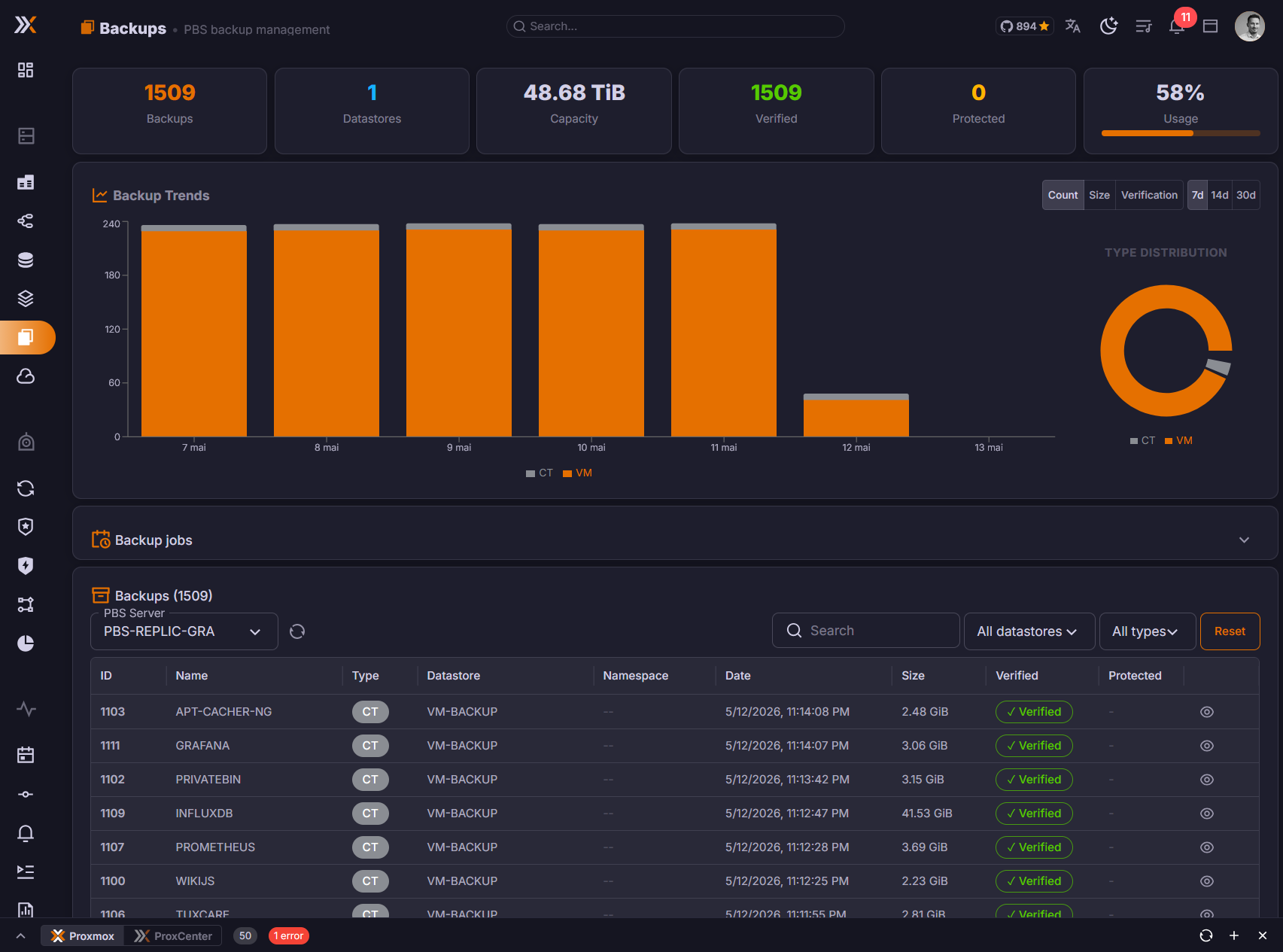
When a PBS server is selected, six key metrics are displayed at the top:
| Metric | Description |
|---|---|
| Backups | Total number of backup archives |
| Datastores | Number of available datastores |
| Capacity | Total storage capacity of the PBS server |
| Verified | Number of backups that have passed verification |
| Protected | Number of backups marked as protected |
| Usage | Storage utilization percentage with a progress bar |
Backup Archives
Listing
Backup archives are displayed in a data grid with server-side pagination. You can choose to display 25, 50, or 100 items per page. Each row shows:
| Column | Description |
|---|---|
| ID | The backup VM/CT ID |
| Name | VM or container name |
| Type | VM, CT (container), or Host |
| Datastore | The PBS datastore storing this backup |
| Date | When the backup was taken |
| Size | Backup archive size |
| Verified | Whether the backup has been verified (green chip) or not |
| Protected | Lock icon for protected backups |
Filtering
Three filter options are available above the backup list:
- Search -- Free text search with debounced input (searches across backup names and IDs)
- Datastore -- Filter backups by a specific PBS datastore
- Type -- Filter by backup type (VM, CT, Host)
Click Reset to clear all filters and reset pagination.
Backup Detail Drawer
Click on any backup row to open a detail drawer on the right side of the screen. The drawer has two tabs:
Information Tab
Displays detailed metadata about the selected backup:
- Backup ID and VM name
- Size and owner
- Protection status
- Verification status and timestamp
- Comments
Action buttons for restore, verify, download, and delete are available in the detail drawer for quick backup operations.
Explorer Tab
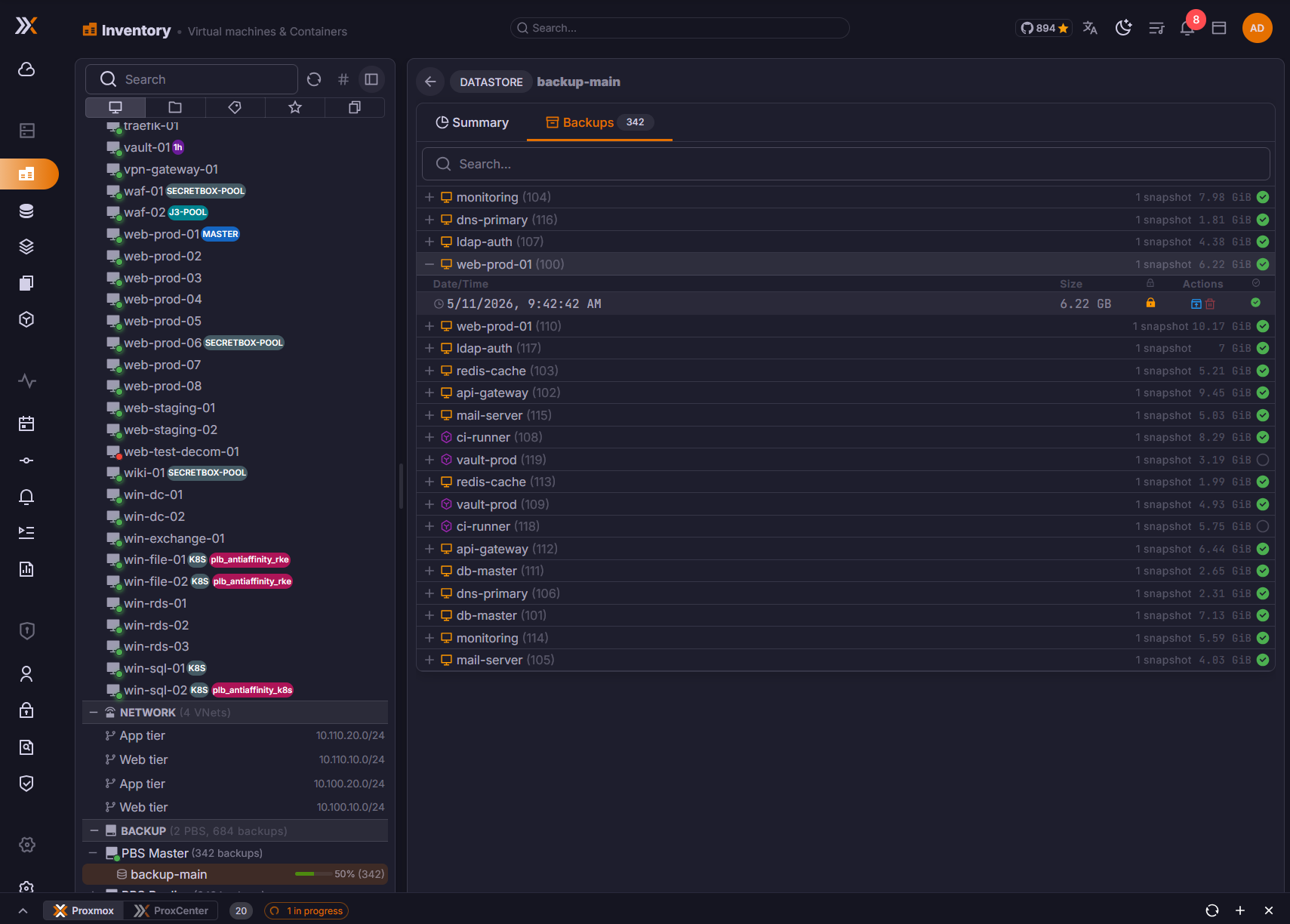
The backup archive explorer lets you browse the files inside a backup archive. This feature works with PBS .pxar archives.
How to use the explorer:
- Open a backup's detail drawer and switch to the Explorer tab
- The top level shows the available archives within the backup (e.g.,
drive-scsi0.img.fidx,root.pxar.didx) - Click on a browsable archive to enter it
- Navigate through directories using the file list
- Use the breadcrumb navigation at the top to jump to any parent directory
- Click the back arrow to return to the archive list
File type detection: The explorer displays specific icons based on file type and extension, including icons for images, videos, audio files, PDFs, documents, spreadsheets, archives, code files, configuration files, and more.
A Guest's Backups Tab
The Backups page covers the fleet from the Proxmox Backup Server side. A single VM or container also has its own Backups tab in the inventory, and that tab lists everything the guest has been backed up into, from both sources:
- PBS snapshots, grouped per PBS server and datastore
- Local archives, the
vzdumpfiles produced by PVE backup jobs, grouped per node and storage
The two families are always grouped and labelled separately, so a vzdump archive is never mistaken for a PBS snapshot.
How Local Archives Are Discovered
When you open the tab, ProxCenter scans the cluster for storages that accept the backup content type and asks each of them for the archives belonging to this guest:
- A shared storage is queried once.
- A local storage is queried on every online node, so an archive left behind on the node that produced it is still listed after the guest has been migrated. Restoring such an archive is pinned to the node that holds it.
- The guest's current node is queried first, and PVE storages of type PBS are skipped, because the PBS side is already covered by the snapshot list.
A storage only takes part in this scan if the backup content type is enabled on it in Proxmox and it is visible on at least one online node. Neither a PBS connection nor the orchestrator is needed: an installation that only has local vzdump backups gets a populated tab.
The scan runs when the tab is opened, not when the guest is selected in the tree, so the count on the tab label reflects PBS snapshots only until you open it. The scan is also bounded, and ProxCenter warns above the list when it had to stop early or when a storage could not be read.
What You Can Do With a Local Archive
Restore is the only action offered on a vzdump archive. Deleting it, downloading it, and browsing the files inside it require a Proxmox Backup Server, so those controls stay on PBS snapshots. A protected archive shows a lock, and verification state is shown for PBS snapshots only, since a vzdump archive carries none.
Listing a guest's backups needs backup.view, while restoring is checked separately against vm.backup on the target node. A user can therefore see an archive in the list and still be refused the restore.
vDC tenants see PBS snapshots only in this tab. Local vzdump archives sit on cluster storages the tenant does not own, so they are not surfaced inside a vDC. Provider administrators and MSP tenants get the full list.
Backup Jobs
The Backups page includes a tabbed section for managing backup jobs from both PVE and PBS connections.
PVE Backup Jobs
View and manage backup jobs configured on your Proxmox VE clusters. For each PVE connection, you can:
- View all backup jobs with their schedule, storage target, node, selection mode, backup mode, and comments
- Create new backup jobs with full configuration: storage selection, schedule, node, backup mode (snapshot/suspend/stop), compression (zstd/gzip/lzo), guest selection, retention, and email notifications
- Edit existing jobs to modify any configuration parameter
- Enable/disable jobs with a toggle switch
- Run jobs immediately with the play button
- Delete jobs with confirmation dialog
Choosing What a Job Backs Up
In the provider view, the Selection mode field of the create and edit dialogs offers four ways to describe the perimeter of a job. They map one to one onto what Proxmox vzdump understands, so a job created here reads back correctly in the Proxmox interface, and a job created there reads back correctly here.
| Selection mode | What the job backs up |
|---|---|
| All VMs | Every guest of the cluster, optionally minus an exclusion list |
| Select VMs | Only the guests you tick |
| All except... | Every guest of the cluster except the ones you tick |
| Pool based | Every guest that belongs to a Proxmox resource pool, resolved at each run |
Pool based is the mode added in v1.4.8. Pick a pool from the Resource pool list and the job follows that pool: a guest moved into the pool is backed up from the next run, a guest moved out stops being backed up, with nothing to edit on the job. This is the same behaviour Proxmox gives a vzdump job with a pool parameter, and it is the mode to use when your guests are already organised by pool rather than by identifier.
The pool list is fed by the connection's pools endpoint, which respects the caller's perimeter, so a scoped operator only sees the pools they are entitled to. A few points worth knowing:
- The list reads No pool on this cluster when the cluster declares none.
- The pool of a job you are editing stays selectable even when it is not in the fetched list, whether the list has not landed yet or the pool sits outside your perimeter. Without that, opening the dialog would blank the field and saving would silently clear the job's pool.
- Save stays disabled until a pool is picked, and the API refuses a pool-based job with no pool rather than creating one with no selection at all.
The Backup Jobs panel of an inventory node now resolves a pool-based job instead of printing a dash: its Selection column reads Pool: followed by the pool name, and its detail lists the guests that currently belong to the pool, read from the pool membership the cluster resources already carry.
Tenant-Scoped Backup Jobs
For vDC tenants, PVE backup jobs are constrained to the tenant's resource pool and allowed backup target. The create/edit flow uses a structured schedule picker:
| Field | Description |
|---|---|
| Frequency | Daily, weekly, or custom schedule |
| Time | Execution time for the backup job |
| Weekdays | Days selected for weekly schedules |
| Target | Tenant-visible PBS storage or namespace |
| Selection | VMs and containers inside the tenant's vDC pool |
Tenant users can verify and delete their own allowed backup archives. They cannot target provider storage, another tenant's PBS namespace, or VMs outside their vDC pool.
A vDC tenant does not get the Selection mode field at all: its jobs are pinned to pool selection and the pool is the tenant's own vDC pool. Pool selection existed for that flow from the start, which is exactly why the API already knew how to map it, read it back and resolve its members. What v1.4.8 added is the choice in the provider dialogs.
vDC PBS Bindings
Each vDC can have a dedicated Proxmox Backup Server namespace. In automatic mode, ProxCenter provisions the PBS namespace, sub-token, ACL, and matching PVE storage entry. Manual mode is available when operators want to pre-create PBS objects or enforce custom naming.
This binding isolates backup data by design:
- PBS archive lists are filtered by namespace
- Restore targets must belong to the tenant vDC
- Backup jobs are limited to the tenant pool
- Provider administrators retain cross-tenant visibility from the provider view
Tenant Restore
Tenant users can restore from PBS in two modes:
- Overwrite source VM -- Restore the backup over the original tenant-owned VM or CT.
- Restore as new VM -- Create a new VM or CT inside the tenant's vDC pool.
The tenant restore dialog uses a simplified flow and hides advanced Proxmox flags that are not needed for self-service recovery. Placement, storage, network, and quota checks are enforced before the restore starts.
PBS Backup Jobs
View and manage jobs configured directly on your Proxmox Backup Server. PBS job types include:
| Job Type | Description |
|---|---|
| Sync | Synchronize backups between PBS servers or remotes |
| Verify | Verify backup archive integrity |
| Prune | Apply retention policies to remove old backups |
| GC | Garbage collection to reclaim unused storage |
| Tape | Tape backup jobs for offline storage |
For each PBS job, you can view:
- Job ID, type, datastore, namespace, and schedule
- Last run state (OK, Error, Warning, Running)
- Last and next execution timestamps
- Comments
PBS jobs support create, edit, run now, and delete operations with type-specific configuration dialogs.
Required Permissions
To access the Backups page, users need one of the following permissions:
backup.view-- View backup archives and detailsbackup.job.view-- View backup job configurations